Nistro AI Postgres
Get production-ready PostgreSQL in just a few clicks. Choose a plan and location, and Nistro AI handles provisioning, backups, and upgrades so you can focus on your application.
Start with On-Demand, move to Scale for dedicated infrastructure, high availability, read replicas, and point-in-time recovery, or choose Enterprise to run PostgreSQL in your own cloud account.
Quick start#
- In the console, open Postgres Deployments and select Create.
- Choose the On-Demand plan, a size and a location, then select Load pricing and Deploy.
- When the deployment shows Running, copy the
psqlcommand from its Quick test card and run it:
psql 'postgresql://<username>:<password>@<host>:5432/<database>'Plans#
| On-Demand | Scale | Enterprise | |
|---|---|---|---|
| Compute | Scale up to 8 vCPU and 32 GiB of memory | Dedicated machines: the instance type you choose | Dedicated machines in your own cloud account |
| Storage | Up to 1 TiB | Up to 4 TiB | Up to 4 TiB |
| PostgreSQL version | 18 | 14 to 18 | 14 to 18 |
| Placement | A location: US, EU, Asia or Any | The location, cloud, region and instance type you choose | Your cloud account, region and instance type |
| High availability with standby replicas | — | Yes | Yes |
| Read replicas and a reader endpoint | — | Yes | Yes |
| Automatic backups, point-in-time recovery and snapshots | — | Yes | Yes |
| Disaster recovery | — | Yes | Yes |
| Workload presets | Yes, managed for you | Yes, as a starting point you can override | Yes, as a starting point you can override |
| Parameters and extensions, including pgvector | Tuned by presets | 50+ parameters and 30+ extensions | 50+ parameters and all community-validated extensions |
| Superuser access | — | — | Yes |
| Stop and start | Yes | Yes | Yes |
| Platform support | Basic | SLA-backed | Enterprise-grade |
| DBA support add-on | — | Standard | Custom |
Prices for each plan are on the pricing page.
Enterprise runs Nistro AI Postgres inside your own AWS, Google Cloud, Azure or Nebius account, so your data stays in your perimeter and runs on your existing cloud commitments. Connect the account under Cloud Accounts, then pick Enterprise when you create a deployment. See Cloud accounts.
Create a deployment#
Open Postgres Deployments in the console and select Create. Pick a plan, fill in the requirements, select Load pricing, review the offer, then select Deploy. The deployment's page opens and shows its progress.
On-Demand plan#
Set up your database in four sections:
- Capacity: vCPU (1 to 8), memory (4 GiB per vCPU, set together with vCPU) and storage (10 to 1024 GiB).
- Workload: an optional workload preset that tunes PostgreSQL for your workload.
- Database: the database name, username and password. New databases run PostgreSQL 18.
- Placement: the location: US, EU, Asia or Any.

Create from your terminal with the Postgres On-Demand CLI commands.
Scale plan#
Choose exactly where and how your database runs:
- Placement: the location, cloud, region and instance type.
- Storage: 10 to 4096 GiB per node.
- High availability: the number of standby replicas, from 0 to 8 (default 1). Each standby runs on its own node.
- Database: the PostgreSQL version (14 to 18, default 18), database name, username and password.
- Support: the optional DBA support add-on.
- Advanced (optional): a workload preset, parameters and extensions.
Create from your terminal with the Postgres Scale CLI commands.
Enterprise plan#
Connect your cloud account first. Then, under Placement, choose your Cloud account, the Region and the Instance type. Storage, High availability, Database and Advanced work as on Scale, with 1 to 8 standby replicas, and Advanced adds superuser access.
Database name, user and password#
- The database name and username default to
app. Use lowercase letters, numbers and underscores, starting with a letter or underscore, up to 63 characters. - Leave the password blank and Nistro AI generates a strong one for you. To set your own, use 12 to 128 characters of letters, numbers and
! @ # $ % ^ & * ( ) _ + = . -.
Connect#
When the status is Running, the deployment's Overview shows:
- Writer endpoint: the host for reads and writes, as
postgres://<host>:5432. - Reader endpoint (Scale and Enterprise): a host for read queries, spread across your standby replicas.
- Database, Username and Password. Reveal or copy the password at any time.
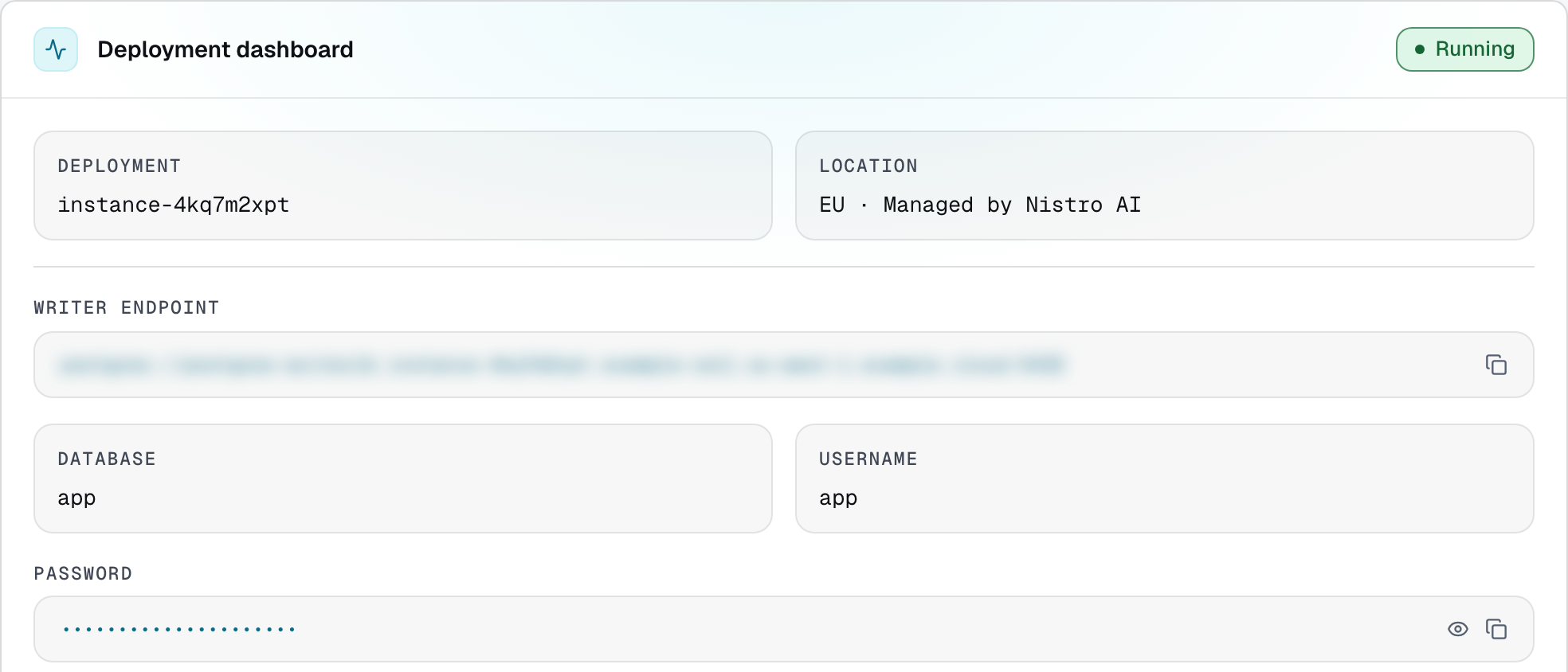
The Quick test card has a psql command with every value filled in. Copy it, or build the connection string yourself:
psql 'postgresql://<username>:<password>@<host>:5432/<database>'Give your application the same connection string, for example as an environment variable:
export DATABASE_URL='postgresql://<username>:<password>@<host>:5432/<database>'Monitoring#
A deployment's Overview tab shows Live vitals (cluster health, ready nodes and storage) and its recent events. The Health tab goes deeper:
- Database health: cluster health, ready nodes, high availability, the writer and reader endpoints and storage.
- Nodes: each node's zone and status. On Scale and Enterprise, this is also where you switch over to a standby.
- Lifecycle: the database's lifecycle events, with their time, phase and message.
On On-Demand and Scale, the Metrics card on the Overview tab gives you Grafana dashboards for your database. Sign in to Grafana with the URL, username and password shown on the card, then select Open dashboard next to Overview, Networking or any other dashboard listed. The card fills in once the deployment is running. Keep these credentials private, like your database password.
Across all your deployments, Alerts flag what needs attention and notify you by email or Slack, the Activity Log records what changed, and Usage shows usage and cost.
For query-level insight on Scale and Enterprise, enable the pg_stat_statements extension and query it in psql.
Workload presets#
A workload preset tunes PostgreSQL for the kind of work your database does, sized to its vCPU and memory.
| Preset | For |
|---|---|
| OLTP | Short transactional queries and many small writes. |
| OLAP | Large scans, sorts and aggregations. |
| Queuing | Job and message queues with constant inserts and deletes. |
| Full text search | Text search over GIN indexes. |
Each preset sets PostgreSQL's memory, connection, planner, checkpoint and autovacuum settings for your deployment's size and workload.
On On-Demand, Nistro AI manages the preset's values for you, and you can switch presets at any time. When you scale the deployment, the values follow its new size.
On Scale and Enterprise, the preset is a starting point: its values are sized to the instance when the deployment is created, and any parameter you set takes precedence.
Parameters#
Scale and Enterprise deployments let you tune these postgresql.conf parameters, when you create the deployment under Advanced or later under Config > Advanced configuration:
work_mem, maintenance_work_mem, gin_pending_list_limit, shared_buffers, effective_cache_size, hash_mem_multiplier, effective_io_concurrency, random_page_cost, default_statistics_target, jit, join_collapse_limit, max_parallel_workers, max_parallel_workers_per_gather, max_parallel_maintenance_workers, max_connections, statement_timeout, lock_timeout, idle_in_transaction_session_timeout, idle_session_timeout, deadlock_timeout, autovacuum_vacuum_scale_factor, autovacuum_analyze_scale_factor, autovacuum_vacuum_cost_limit, autovacuum_vacuum_cost_delay, autovacuum_naptime, autovacuum_max_workers, autovacuum_work_mem, vacuum_cost_limit, vacuum_cost_delay, max_wal_size, min_wal_size, checkpoint_completion_target, checkpoint_timeout, wal_compression, synchronous_commit, log_min_duration_statement, log_statement, log_min_messages, log_lock_waits, log_temp_files, log_autovacuum_min_duration, log_connections, log_disconnections, track_io_timing, track_activity_query_size, pg_stat_statements.max, pg_stat_statements.track, timezone, default_transaction_isolation, temp_file_limit.
Changes to shared_buffers, max_connections, autovacuum_max_workers, track_activity_query_size and pg_stat_statements.max apply with a rolling restart; the console marks these with restart.
Superuser access#
Enterprise deployments give you the PostgreSQL superuser (postgres) for full control of your database. Select Enable superuser under Advanced when you create the deployment, or turn it on or off later from Config > Advanced configuration.
Extensions#
Choose extensions under Advanced when you create a Scale or Enterprise deployment. Scale includes:
vector, pgcrypto, hstore, citext, uuid-ossp, pg_trgm, ltree, tablefunc, unaccent, btree_gin, btree_gist, fuzzystrmatch, intarray, earthdistance, cube, pg_stat_statements, isn, seg, tcn, moddatetime, pgrowlocks, bloom, tsm_system_rows, tsm_system_time, dict_int, dict_xsyn, autoinc, insert_username, intagg, refint.
Enterprise supports all community-validated extensions. vector (pgvector) comes with optimized indexing for large embedding datasets and RAG pipelines. In psql, \dx lists the extensions installed in your database.
High availability#
Scale and Enterprise deployments run a primary with standby replicas, each on its own node. If the primary goes down, a standby takes over automatically, and the reader endpoint spreads read queries across the standbys.
- Change the number of standbys from Config > High availability.
- Switch over manually from Health > Nodes: select Switch over on a standby and type
switchto confirm. Writes pause briefly while the standby takes over, so make sure your application reconnects.
Backups and snapshots#
Scale and Enterprise deployments are backed up automatically, with point-in-time recovery, on-demand snapshots and disaster recovery to guard against data loss. On Scale, backups run every hour and are kept for 7 days, for a recovery point objective (RPO) of 1 hour.
- Take a snapshot from the deployment's Backups tab while it's running.
- Restore a completed backup or snapshot from the same tab. Restoring creates a new deployment with the source's configuration and leaves the source as it is. Type
restoreto confirm.
Snapshots & Backups in the console lists the backups and snapshots of every deployment in the team, including deployments you've since deleted.
Scale#
- On-Demand plan: from Config > Compute and storage, change vCPU between 1 and 8 (memory follows) or add storage, up to 1 TiB.
- Scale and Enterprise plans: add storage from Config > Storage while the deployment is running, and change the number of standbys from Config > High availability.
Stop, start and delete#
- Stop a deployment to pause its compute, and Start it again when you need it. Both are in the deployment's header.
- Delete: select the delete icon in the deployment's header, or Delete deployment on the Danger tab, and type
deleteto confirm. Deleting can't be undone.
DBA support add-on#
Get hands-on PostgreSQL expertise from Command Prompt, a Nistro AI partner. Add Standard DBA support to a Scale deployment in the Support section when you create it; Enterprise deployments get custom DBA support.
- It covers tuning, schema design, migrations and query optimization during business hours.
- It's billed separately, by the hour; see the pricing page and the Terms of Use.